Introduction
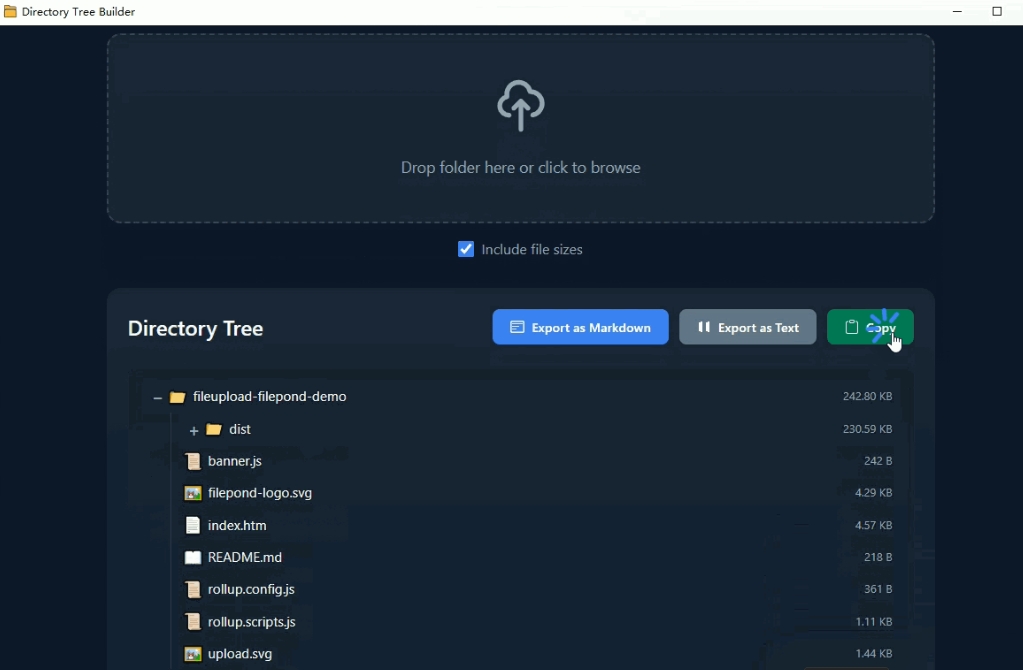
Directory Tree Builder is a free desktop application that helps you quickly generate a directory tree structure of a folder and export it in Markdown or plain text format.
Free.
Download
Features
- 📁 Visual display of folder structure
- 📝 Supports multiple export formats (Markdown / Plain Text)
- 📊 Option to show file sizes
- 🖱️ Supports drag and drop of folders into the app
- 🔗 Double-click a file to open it directly
- 📂 Folders can be expanded/collapsed
- 🔄 Built-in auto-update feature
System Requirements
Now start testing
- Operating System: Windows 10 or later
- Disk Space: Approximately 50MB
Installation
- Download the installer (
.exefile) - Double-click to run the installer
- Follow the installation wizard to complete the installation
- After installation, double-click the desktop icon to launch the app
1. Select a Folder
After launching the app, you can select the folder to generate a directory tree in two ways:
Method 1: Click the button
- Click the "Select Folder" button on the left
- In the folder selection dialog, choose the folder you want to scan
Method 2: Drag and drop
- Directly drag and drop a folder into the app window
- The app will automatically recognize and start scanning
2. View the Directory Tree
After selecting a folder, the app will automatically scan and display the directory tree structure:
- Expand a folder: Click the + arrow on the left of the folder
- Collapse a folder: Click the - arrow on the left of the folder
- Open a file: Double-click the file name to open it with the system default program
3. Export the Directory Tree
Once you are satisfied with the directory tree, you can export it:
Export as Markdown
- Click the "Export as Markdown" button
- Choose the save location and file name
- Click Save
Export as Plain Text
- Click the "Export as TXT" button
- Choose the save location and file name
- Click Save
4. Settings Options
The app provides the following settings:
- Show file sizes: When checked, the file size will be displayed after each file
- Show hidden files: When checked, system hidden files will be included
FAQ
Q: Will the app modify my files? A: No. This app only reads the folder structure and does not modify, delete, or move any files.
Q: How large of a folder can it handle? A: There is no theoretical limit, but larger folders will take longer to scan. It is recommended that folders containing tens of thousands of files can still be processed normally.
Q: Does it support network drives? A: Yes, as long as the drive is mapped as an accessible drive in your system.
Q: How do I update the app? A: The app has a built-in auto-update feature. When a new version is available, a prompt will appear, and you can click the "Update Now" button to update.
Uninstallation
- Open the Windows Control Panel
- Go to "Programs and Features"
- Find "Directory Tree Builder"
- Right-click and select "Uninstall"
- Follow the uninstallation wizard to complete the process