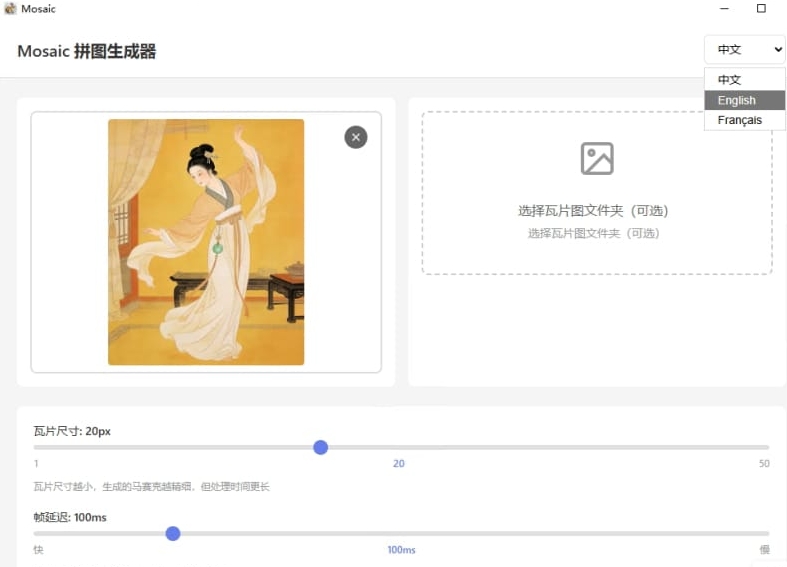
✨ Features
- 🎨 Image Mosaic Generation: Use a large number of small images (tiles) to compose a target image
- 🎬 GIF Animation Support: Support GIF animations
- 👀 Real-time Preview: Preview the effect while processing
- 🌍 Multi-language Support: Chinese, English, French
- 🔄 Auto Update: Built-in auto-update feature to always keep the latest version
- 💻 Cross-platform: Supports Windows
📥 Download & Installation
Windows Users
- Download the latest installer: Mosaic v0.0.3
- Double-click to run
Mosaic_0.0.3_x64-setup.exe - Follow the installation wizard to complete the installation
- Launch the app to start using
System Requirements
- Operating System: Windows 10 or later
- Architecture: 64-bit operating system
- Memory: At least 1GB RAM
- Disk Space: 100MB free space
📖 User Guide
1. Preparation
Before using, you need to prepare:
- Target Image: The original image you want to create a mosaic effect from (supports JPG, PNG, BMP)
- Tile Image Library: A large number of small images for composing (recommended 100+ images)
💡 Tip:
- The more and varied the tile images, the better the result
- It is recommended to use square tile images
- You can download image sets from the internet or use your own photo library
2. Basic Usage Process
Step 1: Select Target Image
- Click the "Select Target Image" button
- Choose your original image in the file picker
Step 2: Select Tile Folder
- Click the "Select Tile Folder" button
- Choose a folder containing a large number of small images
- The program will automatically scan and analyze the color features of these images
⚠️ Note:
- The tile folder should contain only image files
- Supported formats: JPG, PNG, BMP, WebP
- No need to recursively scan subfolders
Step 3: Set Parameters
Grid Size:
- Controls the fineness of the mosaic
- Larger values mean more tiles and finer results
- Recommended range: 50-200
- Default value: 20
Step 4: Start Generation
- Click the "Start Generation" button
- Observe the real-time progress bar and preview window
- You can pause or cancel processing at any time
- Wait for processing to complete
Step 5: Save Result
- After processing is complete, click the "Save Result" button
- Choose the save location and file name
- Select the output format: GIF:
3. Advanced Features
🎬 GIF Animation Processing
Tips for processing GIFs:
- The more frames in the GIF, the longer the processing time
- It is recommended to test with a smaller grid size first
- The output GIF file may be larger than the original
🎨 Color Optimization Tips
For best results:
-
Tile Image Selection:
- Use images with rich colors
- Avoid using many images with similar colors
- Ensure tile images cover various color ranges
-
Parameter Adjustment:
- For target images with rich details, use a larger grid value
- For target images with simple color blocks, use a smaller grid value
- You can try different parameters multiple times
❓ Frequently Asked Questions
Q1: What if the generated image effect is not ideal?
A: Try the following methods:
- ✅ Increase the number of tile images (recommended 500+)
- ✅ Use more diverse tile images
- ✅ Adjust the grid size parameter
- ✅ Ensure tile images are clear and have good color distribution
Q2: What if the processing speed is very slow?
A: Processing speed depends on several factors:
- Resolution of the target image
- Grid size (number of tiles)
- Size of the tile image library
Q3: How to update to the latest version?
A: The program has a built-in auto-update feature:
- It automatically checks for updates each time it starts
- It prompts for an update when a new version is found
- Click the version number in the bottom right corner to manually check for updates
- Supports background download, with one-click installation after download completes
Q4: Why are so many tile images needed?
A: The principle of the mosaic effect is to use the colors of small images to match each area of the target image. The more tile images, the richer the color selection, and the better the matching effect. It's like an artist's palette: the more colors, the more exquisite the painting.
Technical Support
If you encounter any problems or have feature suggestions, please contact me through the "Contact Us" page on our website.